What Are B2S Backglasses in Visual Pinball?
TLDR: A B2S backglass is an optional companion display for a Visual Pinball table. It supplies the virtual backbox artwork and may also show reactive illumination, score reels, animations or a DMD area. The playable game is normally the .vpx file; the backglass presentation is stored separately in a .directb2s file and displayed by B2S Backglass Server.
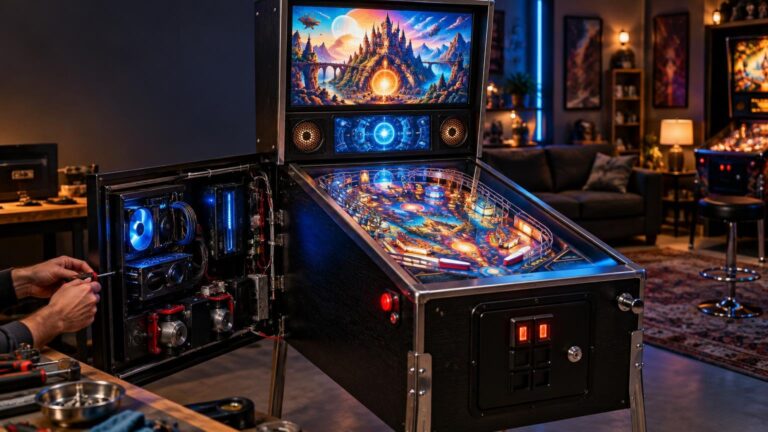
If you are asking what are b2s backglasses in visual pinball, the most useful distinction is that B2S is the presentation layer behind the playfield, not the table itself. You can often run a VPX table without its B2S backglass, but a two-screen or three-screen cabinet looks much more like a complete pinball machine when the matching backbox display is installed and positioned correctly.
What does B2S mean in Visual Pinball?
B2S means “Backglass 2nd Screen.” The official project describes B2S Backglass Server as software for running directB2S backglasses with Visual Pinball. The B2S Backglass Server project provides the server software and its documentation.
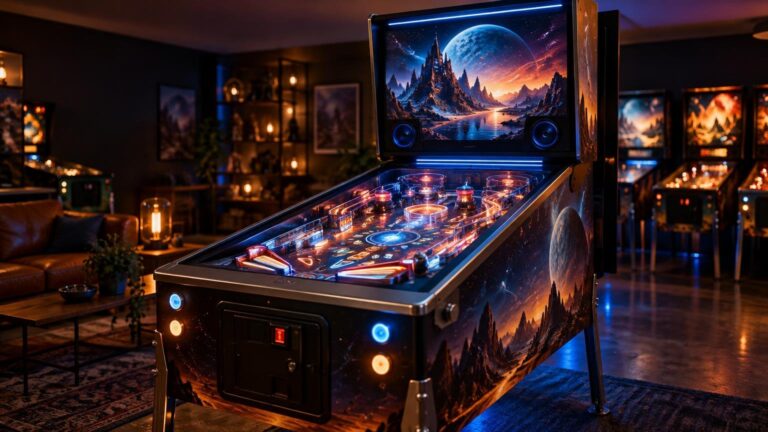
The name reflects the typical cabinet arrangement. Visual Pinball renders the playfield on the main screen, while B2S Server puts the upright backglass presentation on another screen. That second display fills the role of the backbox found on a physical machine.
A simple B2S backglass may primarily provide artwork. A more elaborate one can contain separately controlled lamps, score reels and animation behavior. The available effects depend on how that particular backglass was authored; downloading a .directb2s file does not guarantee that it includes every possible feature.
VPX table, directB2S file, server and DMD explained
Four related components are easy to mix up when you are assembling a virtual pinball installation:
- VPX table: The .vpx file contains the playable table—the playfield, shots, objects, scripting and other game behavior.
- directB2S backglass: The .directb2s file contains the companion backbox presentation created for that table.
- B2S Backglass Server: The software that loads the directB2S file, displays it and handles supported reactions from the running table.
- DMD: The dot-matrix or other score display used by the game. Depending on the table and cabinet layout, it may appear within the backglass area, below it or on a separate physical monitor.
Think of the VPX table as the game and the directB2S file as its stage scenery behind the action. B2S Server is what raises that scenery and turns on its lights. The DMD is a distinct scoring or information display even when its window occupies part of the same monitor as the backglass.
This is also different from DOF in virtual pinball. B2S handles an on-screen backglass presentation, whereas DOF is commonly used to make cabinet hardware such as lights, contactors and shaker motors respond to gameplay.
What can a B2S backglass display?
The exact presentation varies with the era of machine being recreated and the choices made by the backglass author. Common possibilities include backglass artwork, illuminated areas, score reels, changing score displays, animations, a speaker-panel or grill area, and space associated with a DMD.
That variation matters. An electromechanical-style table may use rolling score reels and individual lamp effects. A solid-state game may emphasize illuminated artwork and separate score displays. A later DMD-era game may devote part of the backbox layout to a dot-matrix display. B2S Designer supports backglass elements and animation features, but each finished file only includes what its creator built into it.
B2S is therefore not merely a generic picture placed above the table. A well-authored directB2S file can react as the game runs, creating a closer visual relationship between the playfield and backbox. It still remains separate from the underlying VPX game file.
How B2S fits two-screen and three-screen cabinets
Two-screen layout
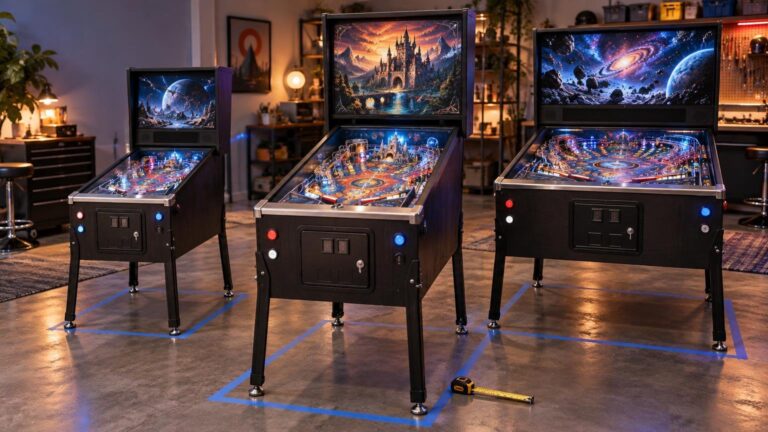
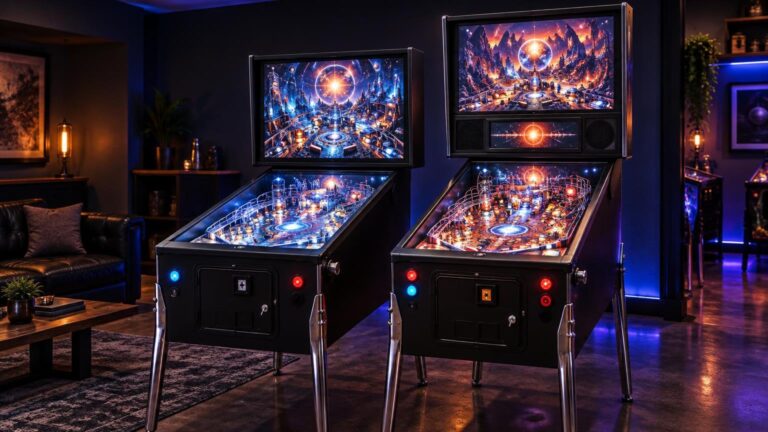
A typical two-screen cabinet uses one horizontal display for the playfield and one upright display for the backbox. The upright monitor may show the backglass artwork while also reserving an area for a DMD or score window. This arrangement keeps the hardware relatively simple, but the backglass and scoring areas must share the available space.
Three-screen layout
A three-screen cabinet normally gives the playfield, backglass and DMD their own displays. This can produce proportions closer to many physical DMD-era machines and gives each element a clearly defined area. It also adds another display that must be mounted, connected and configured.
Desktop layout
B2S is not limited to full cabinets. It can also run as a separate backglass window on a desktop system. The B2S documentation warns that exclusive fullscreen must be disabled for this arrangement because the server-rendered window otherwise cannot remain visible as required.
For any of these layouts, the B2S screen-resolution configuration controls the dimensions and positions of the backglass and B2S-DMD areas. Those coordinates tell the system which monitor and portion of that monitor should hold each element.
Is a directB2S file required?
Not necessarily. A .directb2s file is not normally the playable table, so its absence does not automatically mean that the corresponding .vpx file cannot run. You may simply lose the intended backbox presentation.
There are also tables and front-end arrangements that use another system. Current B2S Server settings explicitly account for tables using PinUP Player without a .directb2s backglass. That means B2S should not be treated as the only possible virtual backbox method.
The practical rule is to follow the table author’s requirements rather than adding a B2S file indiscriminately. If a table release includes or recommends a directB2S backglass, install the matching file. If it specifies a different presentation package, use that package and avoid running two competing backbox presentations.
Why a B2S backglass does not appear
When a table runs but the backglass is missing, start with the simple checks. Changing several display settings at once usually makes the problem harder to isolate.
- Confirm that B2S Backglass Server is installed and configured for the Visual Pinball installation you are launching.
- Check that the table is intended to use a .directb2s file. Some tables use a different backbox presentation system.
- Put the .directb2s file where your installation expects the table’s companion file, commonly alongside the .vpx table.
- Compare the filenames. Current B2S Server documentation describes exact .directb2s filename matching as the default beginning with version 2.0.2, although older or customized installations may behave differently.
- Review the screen-resolution settings. A working backglass can appear to be missing when its coordinates place it beyond the visible desktop or on the wrong monitor.
- If you are using a desktop window, disable exclusive fullscreen so the backglass window can remain visible.
- Restart the table after changing filenames or display settings, then adjust one variable at a time.
Filename matching deserves special attention. The table and backglass can have nearly identical human-readable names but still fail an exact-match rule because of an added version number, author credit or punctuation difference. Rename cautiously, retain the proper extensions and avoid overwriting files until the table and backglass pairing works.
If the backglass opens on the wrong screen, that is usually a placement problem rather than a defective image. Check how the operating system numbers the monitors, then compare that arrangement with the dimensions and coordinates in the B2S display configuration. Monitor numbering, desktop position and physical position are not always as intuitive as they look from the front of a cabinet.
The practical setup order
I would get the VPX table running correctly before trying to perfect the backglass. Confirm that the table loads, accepts controls and plays. Then add its intended backbox presentation, verify file matching, and place the backglass and DMD areas on the correct displays.
For a two-screen build, decide early whether the upright monitor must accommodate both backglass artwork and a score display. For a three-screen build, establish the physical display arrangement before fine-tuning coordinates. Either way, save a copy of a working screen configuration before experimenting further.
The key takeaway is simple: a B2S backglass completes the virtual backbox, but it is not the game. Start with the .vpx table, add the correct .directb2s file when the table uses one, let B2S Server display it, and then tune the monitor positions. That order turns a confusing collection of windows and files into a manageable setup process.
References
- GitHub – vpinball/b2s-backglass: B2S Backglass Server for use with Visual Pinball · GitHub
- b2s-designer/README.md at master · vpinball/b2s-designer · GitHub
- Releases · vpinball/b2s-designer · GitHub
- Read this first!!! – vpinball/b2s-backglass GitHub Wiki
- Screenres.txt – vpinball/b2s-backglass GitHub Wiki
- Settings – vpinball/b2s-backglass GitHub Wiki